62 — 用 R3F 处理鼠标事件
引言
本课名为“mouse events”是为了表述清晰,但它实际上涉及的是一般的“pointer events”,因为我们将要看到的内容同样适用于触摸屏。
出于实际考虑,我们只演示使用鼠标(或触控板)的情况,但欢迎你在手机或任何可用的设备上测试本课。
准备工作
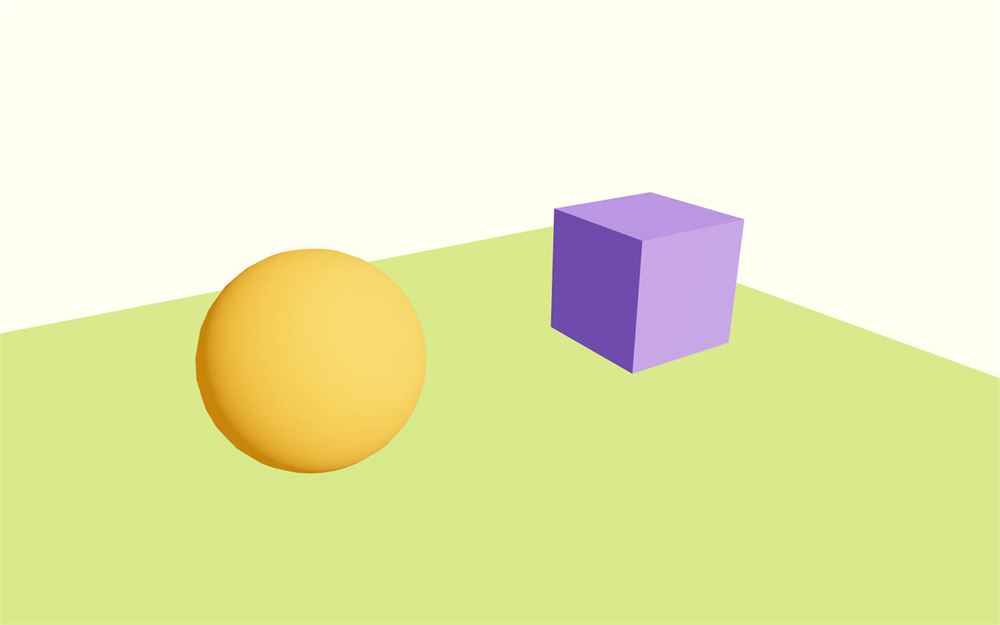
在起始项目中,我们有一个橙色球体、一个动画紫色立方体和一片绿色地面。
@react-three/drei 依赖已经安装在项目中,我们正在使用 OrbitControls 辅助工具来移动相机。
我们没有使用 Perf,因为不应该有任何性能顾虑,但如果你想的话可以自行添加。
监听点击事件
正如前几课所讨论的,处理鼠标事件曾有些棘手。我们需要一个 Raycaster,投射一些射线(有时每一帧都要投射),并测试相交的对象——这些都不得不放进数组里,等等。
R3F 使这个过程简单了许多,我们甚至不需要自己实现 Raycaster。
让我们从监听一个点击事件开始。
我们只需给场景中的某个对象(比如一个 <mesh>)添加一个 onClick 属性,并给它提供一个函数。
我们可以直接传入函数,也可以事先创建好它。
在 Experience.jsx 中,先创建一个 eventHandler 函数:
export default function Experience()
{
    // ...

    const eventHandler = () =>
    {
        console.log('the event occured')
    }

    // ...
}我们为这个函数选择了一个通用的名字(eventHandler),因为我们将用它来测试其他事件。但在真实项目中,记得给你的函数起一个有意义的名称,比如 cubeClickHandler。
现在给紫色盒子的 <mesh> 添加 onClick 属性,并把 eventHandler 传给它:
<mesh ref={ cube } position-x={ 2 } scale={ 1.5 } onClick={ eventHandler } >
    <boxGeometry />
    <meshStandardMaterial color="mediumpurple"/>
</mesh>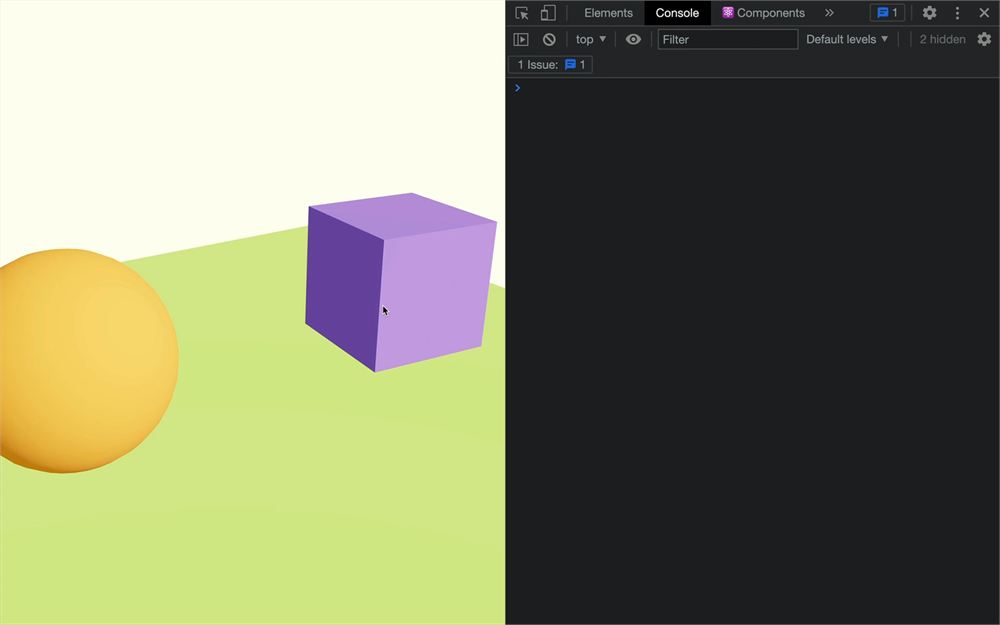
这样就完成了!我们下一课再见。
开玩笑的,因为我们还有很多功能要探索,但如你所见,这超级简单。
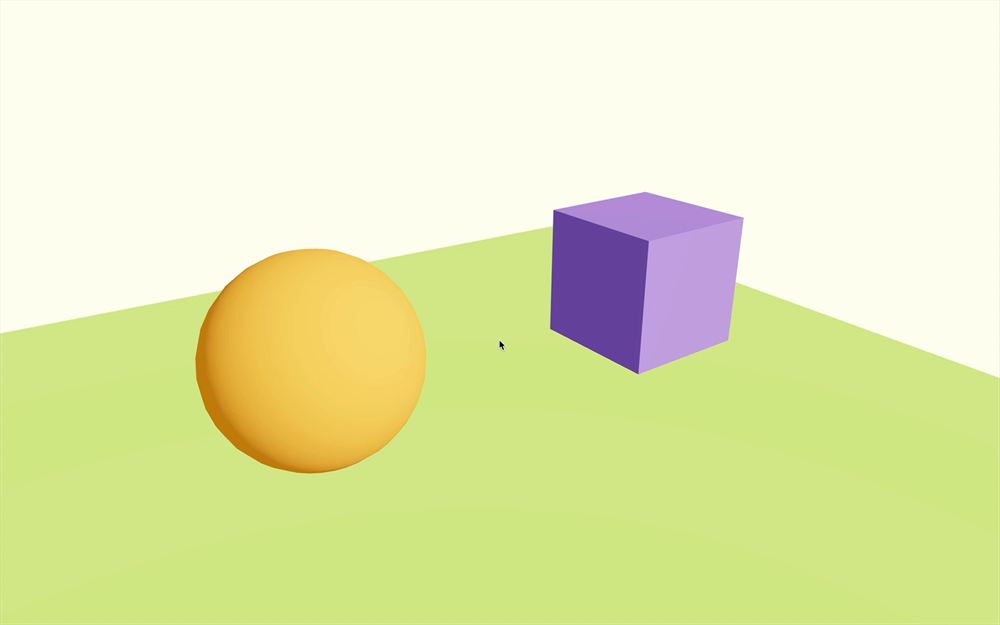
为了获得一些视觉反馈,让我们在点击盒子时改变它的颜色。我们已经有立方体的 reference,可以用一个随机的 HSL 颜色来改变它的 material.color:
const eventHandler = () =>
{
    cube.current.material.color.set(`hsl(${Math.random() * 360}, 100%, 75%)`)
}
你也可以在移动端通过点击立方体来测试这个功能。
事件信息
我们可以通过给函数添加一个参数来访问与事件相关的信息。我们可以把它叫做 event(或者就叫 e):
const eventHandler = (event) =>
{
    console.log(event)
    cube.current.material.color.set(`hsl(${Math.random() * 360}, 100%, 75%)`)
}
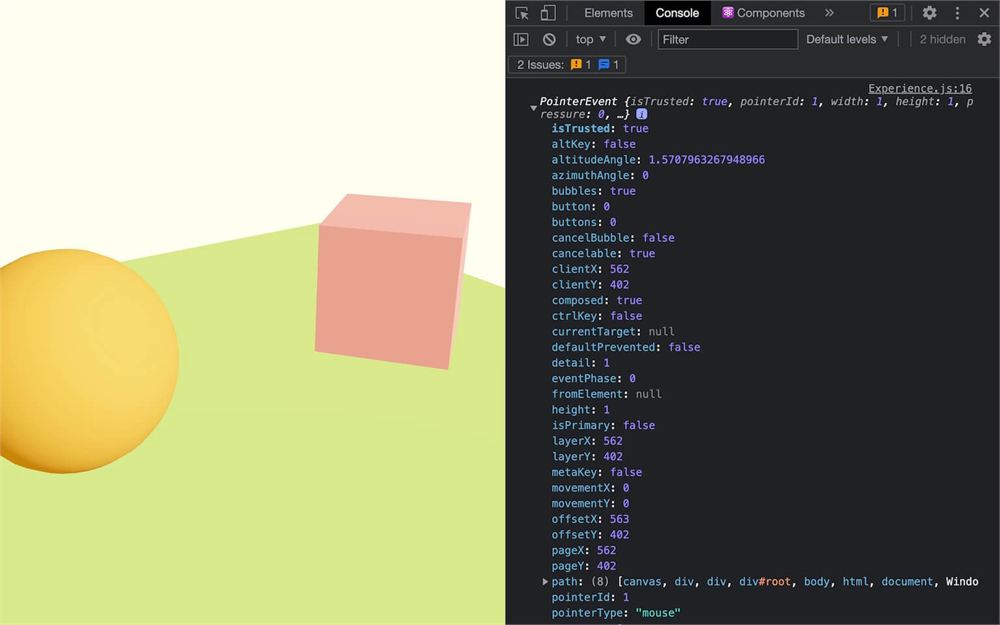
event 是一个包含许多属性和方法的对象。
以下是其中一些:
console.log('---')
console.log('distance', event.distance) // Distance between camera and hit point
console.log('point', event.point) // Hit point coordinates (in 3D)
console.log('uv', event.uv) // UV coordinates on the geometry (in 2D)
console.log('object', event.object) // The object that triggered the event
console.log('eventObject', event.eventObject) // The object that was listening to the event (useful where there is objects in objects)

console.log('---')
console.log('x', event.x) // 2D screen coordinates of the pointer
console.log('y', event.y) // 2D screen coordinates of the pointer

console.log('---')
console.log('shiftKey', event.shiftKey) // If the SHIFT key was pressed
console.log('ctrlKey', event.ctrlKey) // If the CTRL key was pressed
console.log('metaKey', event.metaKey) // If the COMMAND key was pressed
如你所见,它是原生 JavaScript 事件信息与 R3F 相关事件信息的混合。
点击事件听起来可能是最简单的一个,但它比看起来要复杂。
一次点击意味着指针按到对象上,然后又在停留在该对象上的同时抬起。如果它从对象外开始或在对象外结束,该事件就不算作一次点击。
但我们不必担心这些,因为 R3F 已经处理好了。
其他事件
onClick 只是我们可以监听的众多事件之一。
尽管它们大多数都很明显,我们还是要测试一遍,以确保我们理解它们如何工作以及何时被触发。
你可以把 onClick 属性替换为以下属性。
onContextMenu
当上下文菜单应当出现时,会触发 onContextMenu。
在桌面端,我们可以通过 RIGHT CLICK 或 CTRL + LEFT CLICK 来显示上下文菜单。
在移动设备上,我们可以通过长按来显示该菜单。
onDoubleClick
当我们在同一个对象上双击/双触时,会触发 onDoubleClick。
第一次和第二次点击/触摸之间的延迟由操作系统决定。
onPointerUp
当我们松开点击(左键或右键)或触摸时,会触发 onPointerUp。
onPointerDown
当我们刚刚点击或按下手指时,会触发 onPointerDown。
onPointerOver 和 onPointerEnter
onPointerOver 和 onPointerEnter 的工作方式完全相同。
当光标或手指刚刚移动到对象上方时,该事件被触发。
在原生 JavaScript 中,mouseover 事件与 mouseenter 略有不同,因为当光标进入被测试元素的子元素时,它会持续触发事件。
(稍后我们会在 R3F 中讨论元素中的元素)。
onPointerOut 和 onPointerLeave
onPointerOut 和 onPointerLeave 的工作方式完全相同。
当光标或手指刚刚离开对象时,该事件被触发。
onPointerMove
如果光标自上一帧以来发生了移动且位于对象上方,则每一帧都会触发 onPointerMove。
onPointerMissed
onPointerMissed 会告诉你用户是否点击了对象外部。
但 onPointerMissed 有点特殊,因为我们可以把它添加到 <Canvas> 上,当我们点击(松开点击时)但没有任何被监听的对象记录到命中时,它就会被触发:
<Canvas
    camera={ {
        fov: 45,
        near: 0.1,
        far: 50,
        position: [ - 4, 3, 6 ]
    } }
    onPointerMissed={ () => { console.log('You missed!') } }
>
    <Experience />
</Canvas>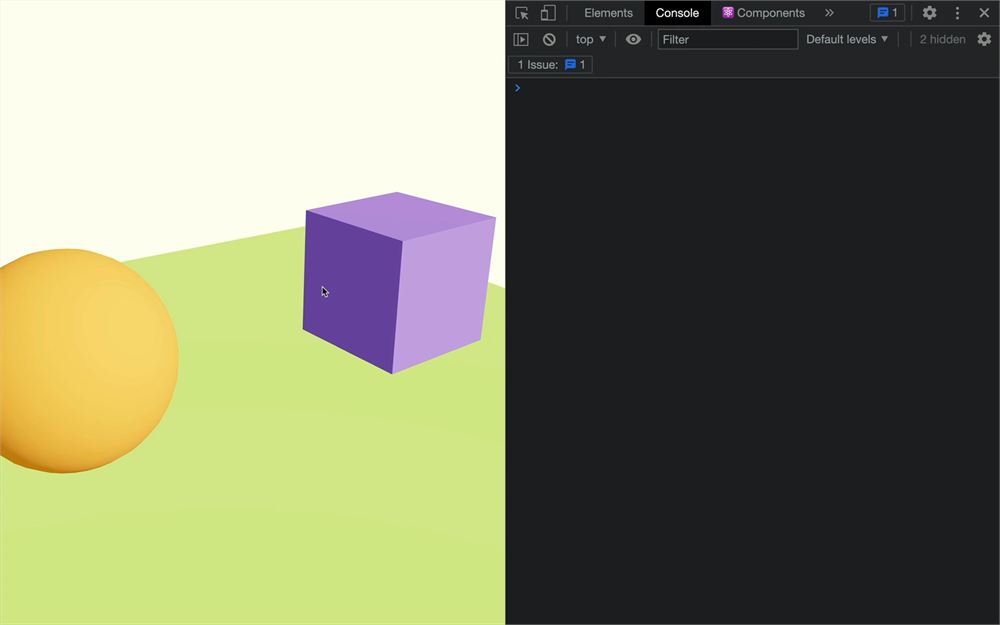
它们的用途
在这些事件之间如何选择,取决于你以及你想构建什么。
但让我们以 RTS 游戏为例(如《帝国时代》或《星际争霸》):
- 当玩家点击一个单位时,你想要选中它。
- 当用户拖放时,你想要绘制一个矩形,而当它松开时,你想要选中矩形内的所有单位。
- 当用户再次点击但按着shift 键时,你想要把单位加入当前选择,或者如果它们已被选中则将其移除。
- 当用户点击但没有命中任何对象时,你想要取消选中所有单位。
你自然会知道何时使用哪一个,但要始终努力让它对用户来说感觉自然且直观。
遮挡
把立方体上的事件属性改回 onClick。
如果你移动相机,让球体遮挡住立方体,然后在立方体所在的位置点击,你会看到事件仍然被记录了。默认情况下,Raycaster 并不关心被测试对象前方有什么:
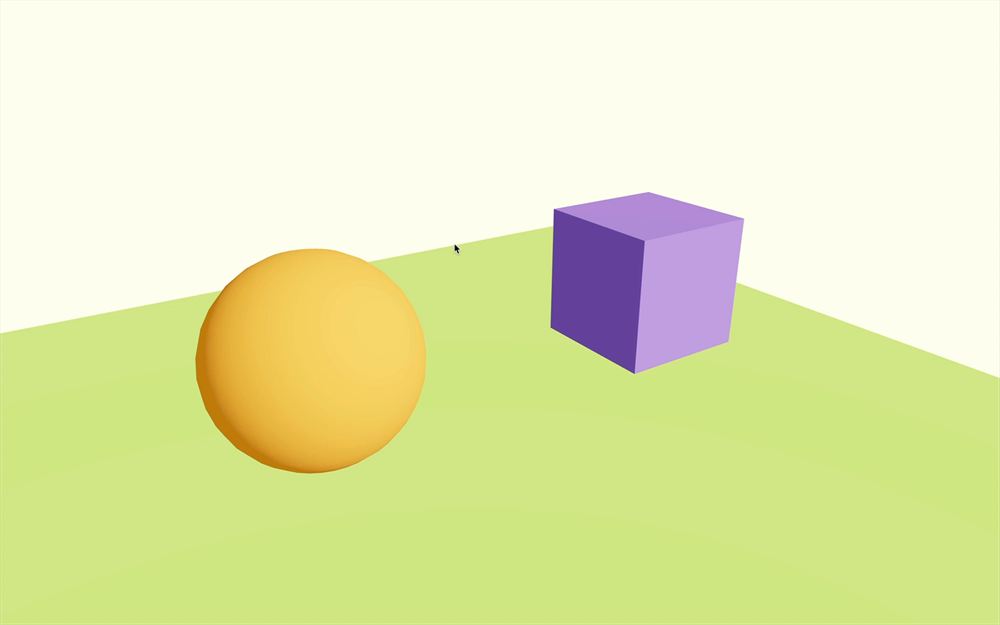
要做到这一点,我们也要在球体上监听 onClick 事件,并告诉它停止传播该事件。
当我们点击时,Three.js 和 R3F 会按照与相机的距离对所有相交的对象进行排序(从最近到最远)。
如果其中一个相交对象请求停止传播,那么后面的对象就不会触发该事件。
给球体添加 onClick 事件,并传给它一个函数:
<mesh position-x={ - 2 } onClick={ () => {} }>
    {/* ... */}
</mesh>
获取 event 参数并调用它的 stopPropagation 方法:
<mesh position-x={ - 2 } onClick={ (event) => event.stopPropagation() }>
    {/* ... */}
</mesh>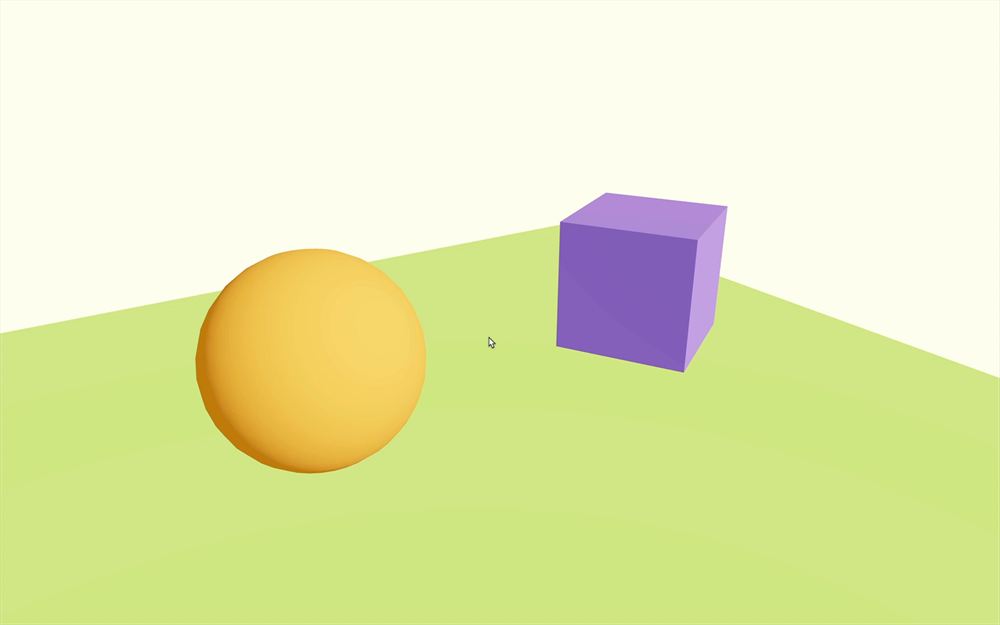
现在球体会遮挡立方体,我们无法穿过它点击。
光标
在桌面端,确保用户明白某个对象可点击的最佳方案之一,是把光标变成手指光标(类似于我们悬停在链接上时)。
首先,我们需要知道鼠标何时进入立方体、何时离开立方体。
给立方体的 <mesh> 添加 onPointerEnter 和 onPointerLeave 属性,并传给它空的函数:
<mesh
    ref={ cube }
    position-x={ 2 }
    scale={ 1.5 }
    onClick={ eventHandler }
    onPointerEnter={ () => {  } }
    onPointerLeave={ () => {  } }
>
    <boxGeometry />
    <meshStandardMaterial color="mediumpurple"/>
</mesh>
然后,我们可以直接在某个顶层元素(如 <body>,我们可以通过 document.body 访问它)上更改光标的样式:
<mesh
    ref={ cube }
    position-x={ 2 }
    scale={ 1.5 }
    onClick={ eventHandler }
    onPointerEnter={ () => { document.body.style.cursor = 'pointer' } }
    onPointerLeave={ () => { document.body.style.cursor = 'default' } }
>
    <boxGeometry />
    <meshStandardMaterial color="mediumpurple"/>
</mesh>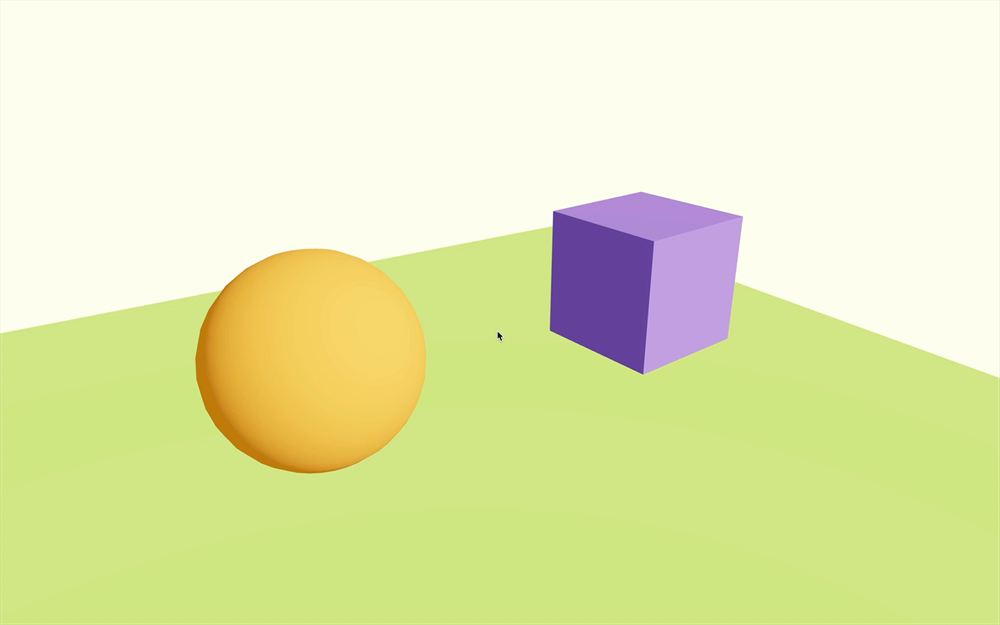
'pointer'会看起来像指向的手指。'default'会看起来像默认指针,通常是箭头。
但如果你在球体遮挡立方体时测试,它就不起作用。
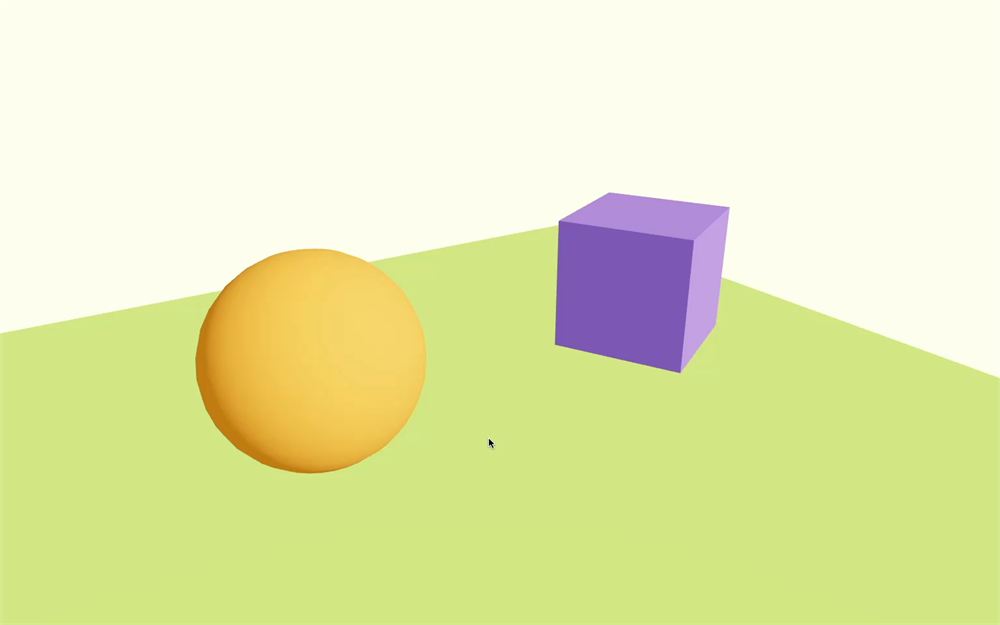
要解决这个问题,除了我们添加到球体 onClick 的 stopPropagation 之外,我们还必须对 onPointerEnter 做同样的事:
<mesh
    position-x={ - 2 }
    onClick={ (event) => event.stopPropagation() }
    onPointerEnter={ (event) => event.stopPropagation() }
>
    <sphereGeometry />
    <meshStandardMaterial color="orange" />
</mesh>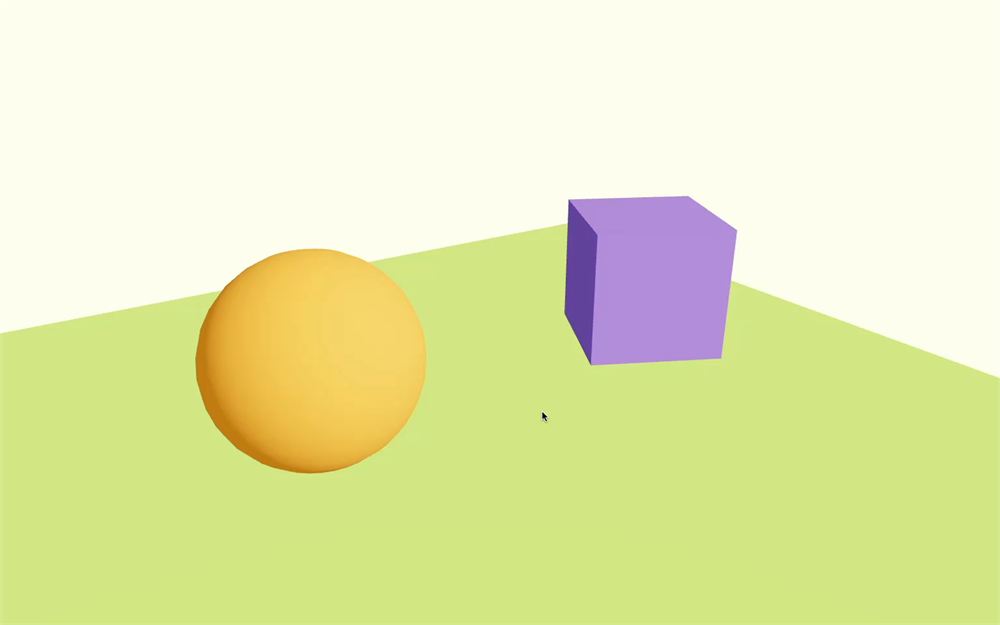
现在球体连光标变化效果都会遮挡立方体。
使用辅助工具
还有一个 drei 辅助工具叫做 useCursor,但它做的事情几乎和我们这里做的一模一样,这就是我们不再实现它的原因。
复杂对象上的事件
但是,当我们对由多个对象组成的物体测试点击时会发生什么?
让我们在我们的汉堡上测试一下。
我们将加载位于 /public/hamburger.glb 的汉堡模型。现在是个好机会让你自己试试。
从 @react-three/drei 导入 useGLTF:
import { useGLTF, OrbitControls } from '@react-three/drei'用它来加载模型:
export default function Experience()
{
    // ...

    const hamburger = useGLTF('./hamburger.glb')

    // ...
}
然后,用 <primitive> 把它添加到场景中:
export default function Experience()
{
    // ...

    return <>

        {/* ... */}

        <primitive
            object={ hamburger.scene }
            scale={ 0.25 }
            position-y={ 0.5 }
        />

    </>
}
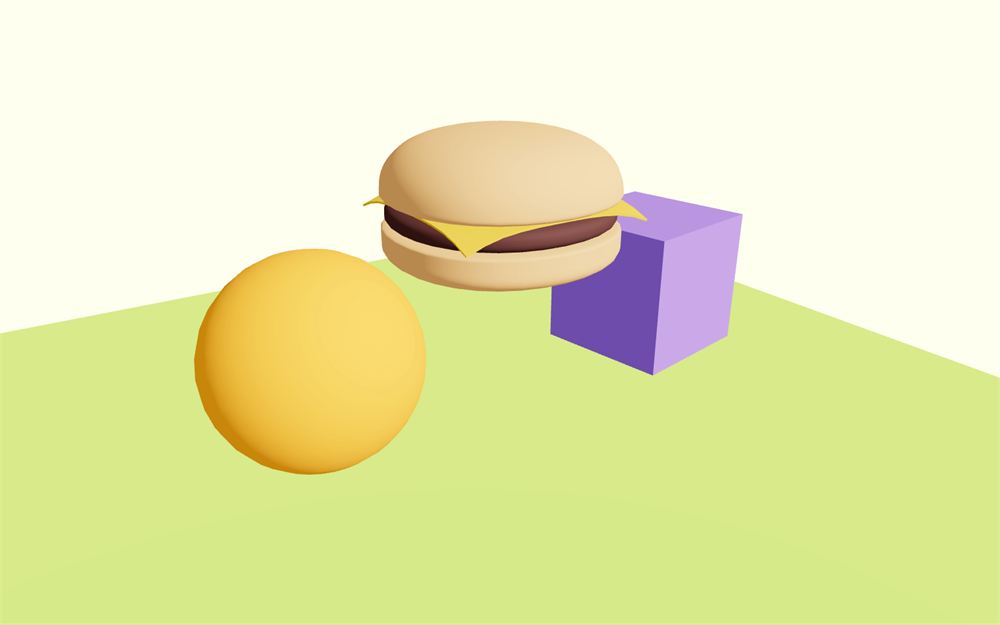
由于 <primitive> 只是实际 object 的一个简单占位符,我们可以像对待任何其他对象一样在它上面监听事件。
监听 onClick 事件:
<primitive
    object={ hamburger.scene }
    scale={ 0.25 }
    position-y={ 0.5 }
    onClick={ (event) =>
    {
        console.log('click')
    } }
/>
现在试着点击汉堡的不同部位:
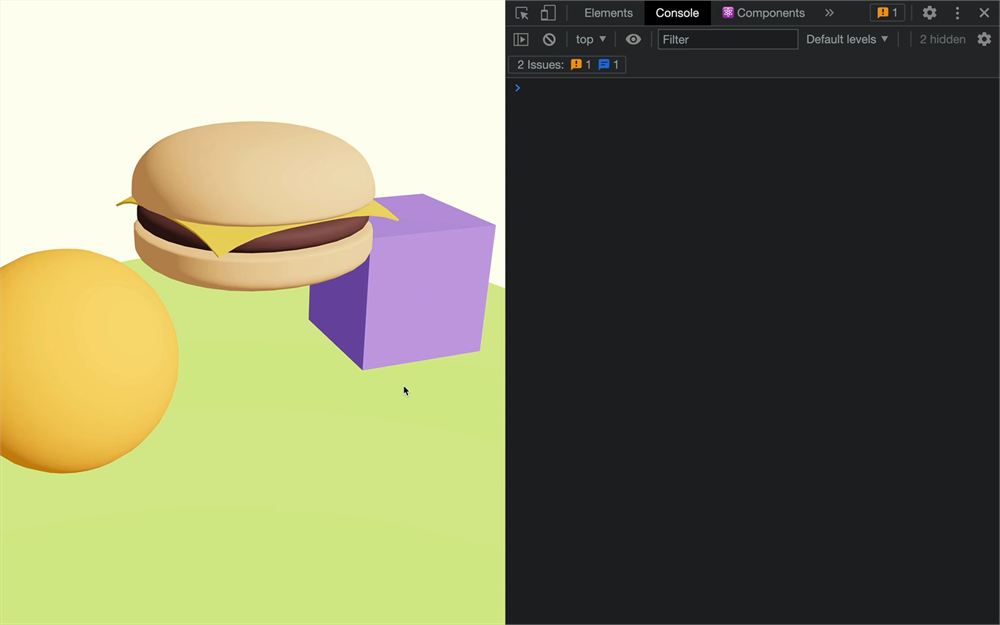
它似乎能工作,但每次点击我们最多会得到 4 个 console.log。
这是因为射线一次性穿过了多个对象。
尽管我们在父级上监听事件,R3F 实际上会测试子级,而且理由充分,因为没有子级父级就什么都不是(我们在这里有点动感情了)。
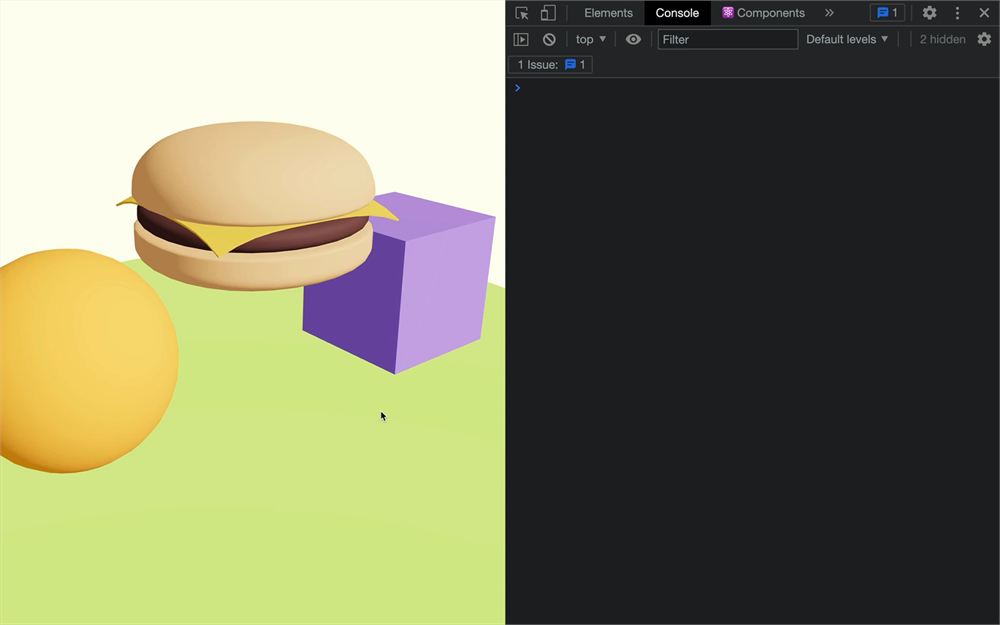
我们其实可以用 event 的 object 属性来测试是哪些对象触发了它:
<primitive
    object={ hamburger.scene }
    scale={ 0.25 }
    position-y={ 0.5 }
    onClick={ (event) =>
    {
        console.log(event.object)
    } }
/>
幸运的是,我们已经知道解决方案。
我们需要通过在 event 上调用 stopPropagation 方法来停止传播:
<primitive
    object={ hamburger.scene }
    scale={ 0.25 }
    position-y={ 0.5 }
    onClick={ (event) =>
    {
        console.log(event.object)
        event.stopPropagation()
    } }
/>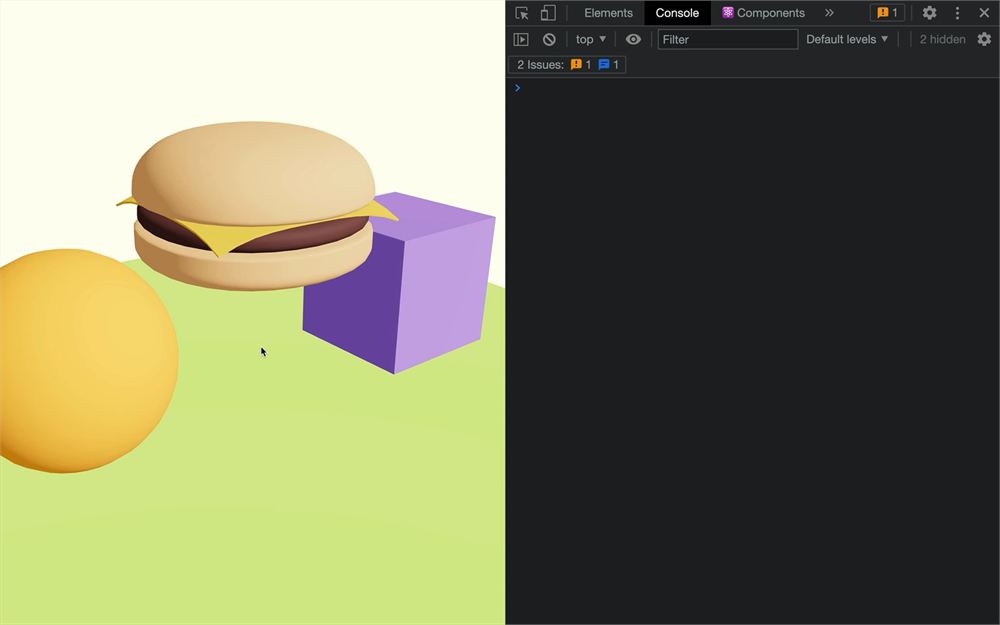
第一个触发事件的对象(无论它是什么)会阻止它后面的其他对象再触发另一个事件。
性能
虽然监听 pointer events 已经变得非常方便,R3F 也会尽其所能优化这个过程,但别忘了这对 CPU 来说是一项相当繁重的任务。
这并不意味着你应该避免使用事件来提升体验的交互性。只需留意性能(尤其是在低端设备上),并尽你所能进行优化。
一般优化
如果可能,避免使用需要每一帧都测试的事件:onPointerOver、onPointerEnter、onPointerOut、onPointerLeave、onPointerMove
尽量减少监听事件的对象数量,并避免测试复杂的几何体。如果你在交互时注意到卡顿,哪怕是短暂的,你就有更多优化工作要做。
meshBounds
我们可以应用的一个简单优化是来自 drei 的 meshBounds 辅助工具。
这个辅助工具会在网格周围创建一个理论上的球体(称为包围球),pointer events 将在该球体上进行测试,而不是测试网格的几何体。
如果你不需要对复杂几何体进行非常精确的检测,这会很有用。
我们将要在立方体上测试它。请注意,meshBounds 只对单个网格有效,这就是为什么我们不能在汉堡上使用它,因为它由多个网格组成。
从 @react-three/drei 导入 meshBounds:
import { meshBounds, useGLTF, OrbitControls } from '@react-three/drei'使用 raycast 属性把它传给立方体的 <mesh>:
<mesh
    ref={ cube }
    raycast={ meshBounds }
    position-x={ 2 }
    scale={ 1.5 }
    onClick={ eventHandler }
    onPointerEnter={ () => { document.body.style.cursor = 'pointer' } }
    onPointerLeave={ () => { document.body.style.cursor = 'default' } }
>
    {/* ... */}
</mesh>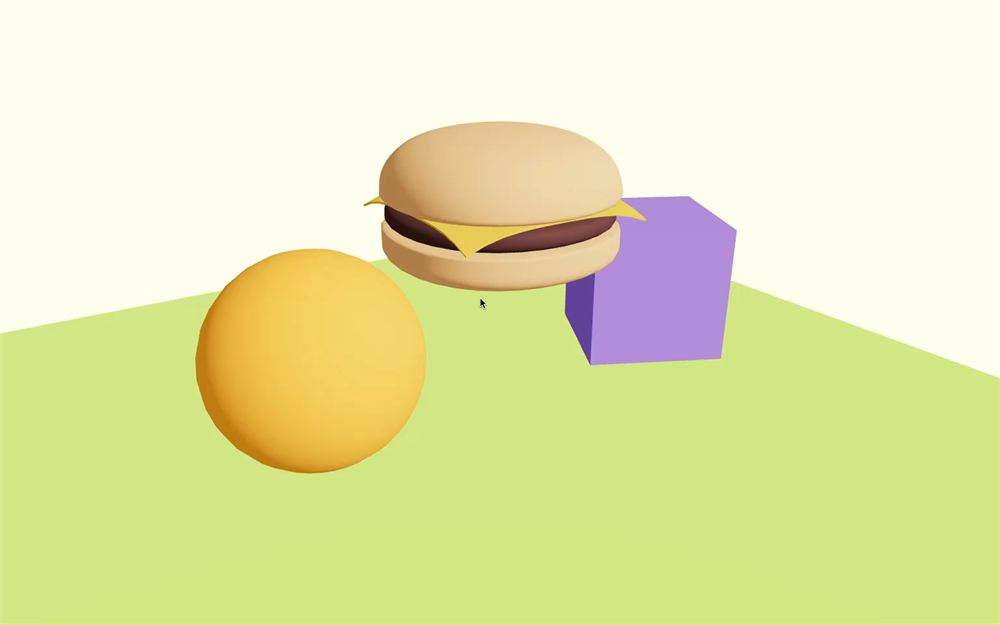
可点击区域看起来是一个大致匹配立方体的圆盘。
BVH
如果你有非常复杂的几何体,并且仍然需要 pointer events 既准确又高性能,你也可以使用 BVH(Bounding Volume Hierarchy,包围体层级)。
这是一种复杂得多的方法,但通过来自 drei 的 Bvh 辅助工具变得简单。
因为 <Bvh> 辅助工具需要包裹整个体验,我们将把它添加到 index.jsx 中。
在 index.jsx 中,从 @react-three/drei 导入 Bvh
import { Bvh } from '@react-three/drei'把 <Experience /> 包裹在 <Bvh> 中:
root.render(
    <Canvas
        camera={ {
            fov: 45,
            near: 0.1,
            far: 200,
            position: [ - 4, 3, 6 ]
        } }
        onPointerMissed={ () => { console.log('You missed!') } }
    >
        <Bvh>
            <Experience />
        </Bvh>
    </Canvas>
)
只需这样,就能在进行 raycasting 时立即获得性能提升,而我们一直在谈论的每一个 pointer event 都属于这种情况。
唯一的缺点是它需要生成一个 boundsTree,随后由 Bvh 在内部使用。这个过程对每个 Mesh 只需执行一次,但根据几何体的复杂程度,可能会导致短暂的卡顿。